Yazi: The Terminal File Manager That Transformed My Linux Workflow
If you've spent any time in the Linux world, you've probably noticed two camps: those who thrive in the graphical desktop environment and those who live inside the terminal. I've always been somewhere in between—comfortable with a nice GUI but willing to dive into the command line when curiosity strikes. That curiosity recently led me to try a terminal-based file manager called Yazi, and it completely changed how I think about file navigation. In this Q&A, I'll share my discoveries and why I think Yazi might be the file manager you never knew you needed.
1. What exactly is Yazi and how does it differ from the usual terminal commands?
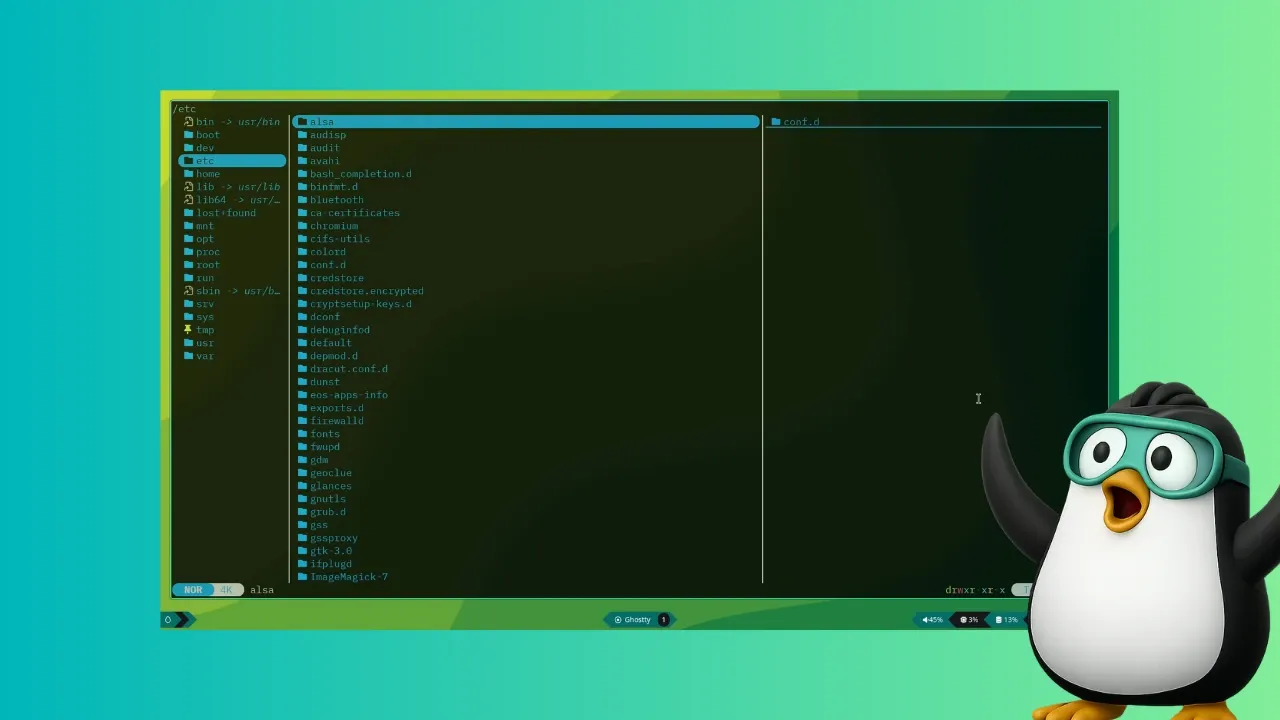
Yazi is a modern, asynchronous file manager that runs entirely inside your terminal. Instead of typing ls and cd repeatedly, you get a full interactive interface where you can browse directories, preview files, and perform operations with keyboard shortcuts. Think of it as a command-line version of Nautilus or Nemo, but optimized for speed and efficiency. What sets Yazi apart from traditional terminal navigation is its ability to handle tasks in parallel—thanks to its Rust foundation and multi-threaded design. You can scroll through previews, search for files, and manipulate content without waiting for one action to finish before starting another. It's like having a graphical file manager's convenience without leaving your terminal session.
2. What standout features does Yazi offer that make it worth trying?
Yazi packs several impressive features that elevate it above typical terminal file managers. First, it offers full asynchronous support, meaning CPU-heavy tasks like previewing images or generating thumbnails are spread across multiple threads, keeping the interface responsive. Second, it has built-in support for multiple image protocols (like Kitty's graphics protocol and Sixel), so you can view images directly in the terminal if your emulator supports it. Third, Yazi includes code highlighting and image encoding for scrollable previews—great for developers who want to peek at source files without opening an editor. Fourth, its powerful search and manipulation tools let you find files by name, type, or content, and perform bulk operations like renaming or copying with ease. Finally, scrollable previews allow you to read long text files or view tall images right inside the panel, saving you from opening separate applications.
3. Who should consider using Yazi instead of a graphical file manager?
Yazi is ideal for anyone who spends significant time in the terminal—developers, system administrators, or power users who prefer keyboard-driven workflows. If you find yourself constantly switching between a terminal and a GUI file manager, Yazi can streamline your work by keeping you in one environment. It's also perfect for people who work on remote servers via SSH, where graphical tools aren't available. Even if you're a GUI enthusiast like me, Yazi's speed and efficiency can be a pleasant surprise. The learning curve is gentle: the default keybindings mimic common text editor shortcuts (like j and k for navigation), and there's built-in help. For those who live in the terminal, Yazi can replace Nautilus or Nemo entirely—you won't feel the need to open a separate window for file management again.
4. How can I install Yazi on my Linux distribution?
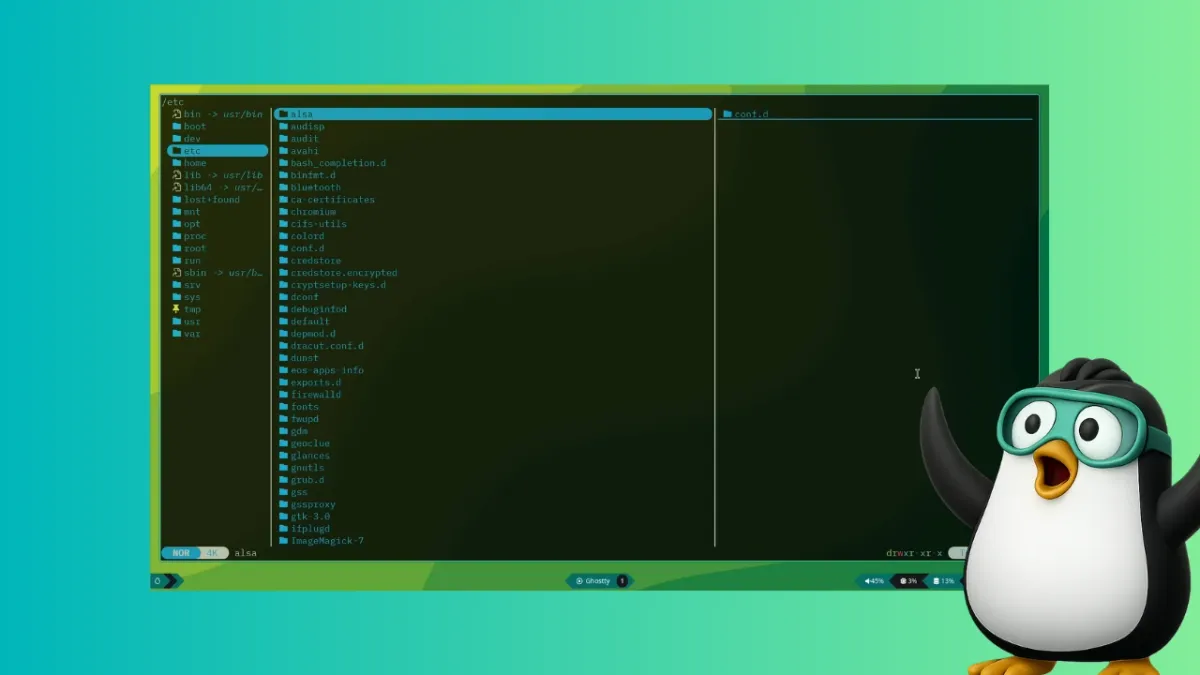
Installation is straightforward. Yazi is available in the official repositories of several Linux distributions. On Arch Linux and its derivatives, you can run sudo pacman -S yazi. For Void Linux, use sudo xbps-install yazi. openSUSE Tumbleweed users can install it via sudo zypper install yazi. For other distributions, you might need to use a package manager like cargo (Rust's package manager) or download a pre-built binary from the GitHub releases page. To get the most out of Yazi, install optional dependencies: ffmpegthumbnailer for video previews, poppler for PDF previews, and fd and ripgrep for enhanced search. After installation, simply type yazi in your terminal to launch it. The first time you start it, you'll be greeted with a clean, two-panel interface showing your current directory and a preview pane.
5. How do you navigate and perform basic file operations in Yazi?
Navigation in Yazi is keyboard-driven and intuitive. Use the arrow keys or j/k to move up and down the file list. Press Enter to open a directory or file (with appropriate preview support). To go back to the parent directory, press Backspace or h. Basic file operations are mapped to common shortcuts: y to yank (copy), p to paste, d to delete (with confirmation), and r to rename. You can also use space to select multiple files for batch operations. For searching, press / and type your query—Yazi supports fuzzy matching and even content search if ripgrep is installed. The Tab key toggles between the file list and the preview pane. With these shortcuts, you can perform most file management tasks faster than using a mouse.
6. How does Yazi compare to GUI file managers like Nautilus or Nemo?
Yazi offers a different philosophy: speed and keyboard efficiency over visual refinement. GUI file managers excel at drag-and-drop, thumbnail previews, and visual polish, but they often require a mouse and can be slower to load. Yazi, on the other hand, launches instantly, uses minimal system resources, and lets you accomplish tasks with just a few keystrokes. It also runs perfectly over SSH or in a tty, which GUI managers cannot. Where Yazi truly shines is in its asynchronous previews—you can scroll through large logs, images, or code files without lag, a feat that graphical managers sometimes struggle with. That said, if you absolutely need thumbnails for every file type or prefer a point-and-click interface, Nautilus remains a solid choice. For me, Yazi became the default for quick file operations, and I only open a graphical manager for complex drag-and-drop scenarios or when I want a visual overview of my media files.