Boost Your Driving Productivity: A Step-by-Step Guide to Using Google Tasks with Android Auto
Introduction
Most drivers view Android Auto as a high-tech dashboard for navigation and music—a convenient way to glance at maps or skip a track. But there’s a hidden gem buried in the interface that can transform your commute into a productivity powerhouse: Google Tasks integration. Imagine capturing that brilliant idea or urgent reminder the moment it strikes, without fumbling for your phone or risking a safety hazard. This guide walks you through how to harness the power of voice-activated task management while driving, ensuring no brilliant thought gets lost in the rearview mirror.
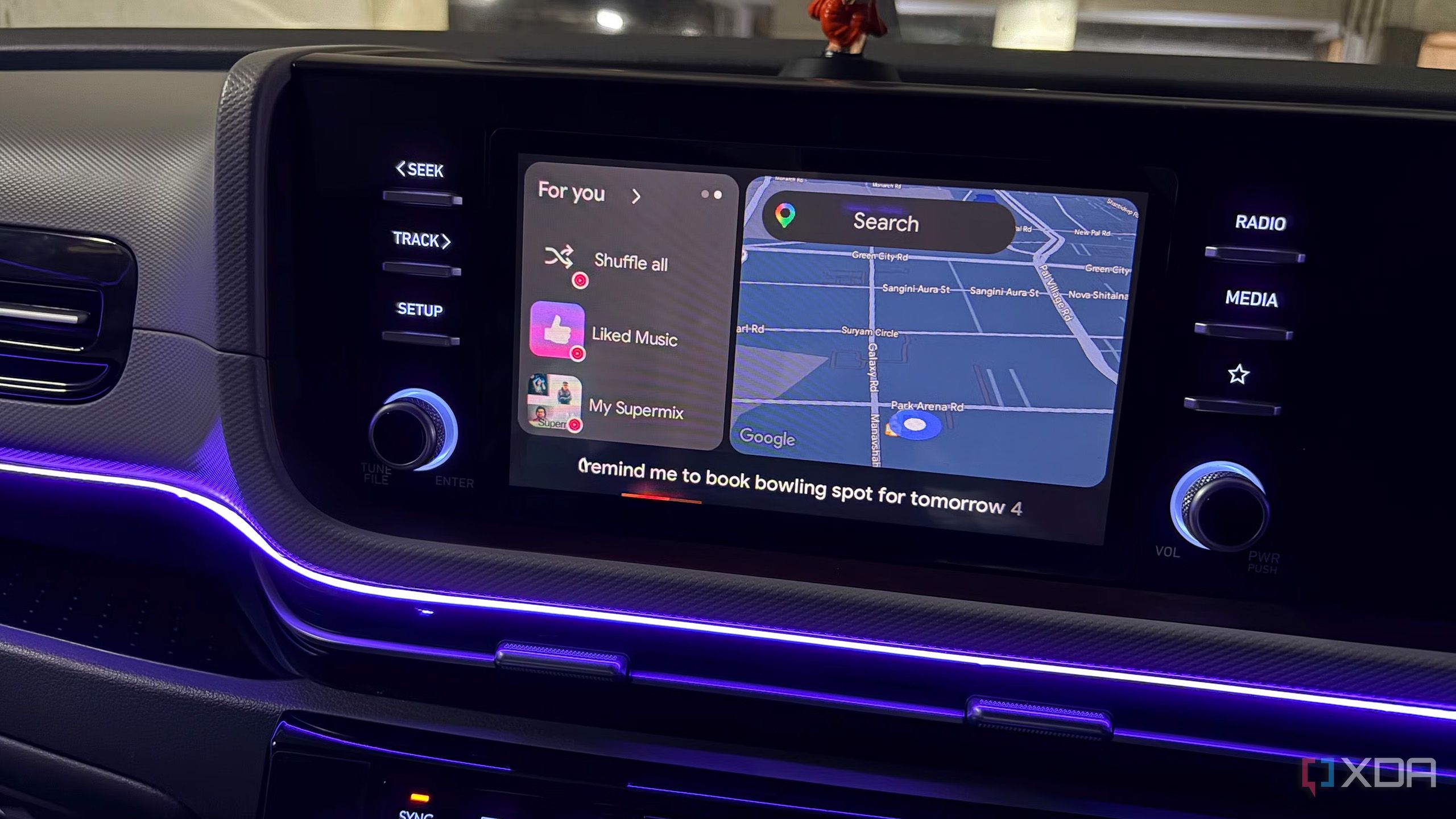
What You Need
- A smartphone running Android 6.0 or later (Google Tasks app requires modern OS)
- Android Auto installed on your phone (version 7.0+ recommended)
- A compatible vehicle or head unit with Android Auto support (wired or wireless)
- Google Tasks app (free from Google Play) – also works via Gmail/Calendar sync
- Google Assistant enabled on your phone (included with Android)
- A stable internet connection (cellular data or Wi-Fi)
- A Google account (tasks sync across all devices)
Step-by-Step Instructions
- Step 1: Set Up Google Tasks on Your Phone
Before hitting the road, ensure Google Tasks is ready. Open the Google Tasks app on your phone and sign in with your Google account (if not already). Create a few sample lists—like “Errands” or “Work Ideas”—so you have structure. All tasks added later will automatically sync to your Google account and appear across Gmail, Calendar, and other devices. For the best experience, enable notifications for Google Tasks so reminders pop up on Android Auto’s screen.
- Step 2: Configure Android Auto for Voice Commands
Android Auto relies heavily on voice input, so Google Assistant must be activated. On your phone, go to Settings > Google > Settings for Google apps > Search, Assistant & Voice > Google Assistant. Ensure the Assistant is turned on and “Voice Match” is active (so it responds to “Hey Google”). Then, open the Android Auto app, tap the menu, and check that “Try the new Android Auto” or a similar experimental mode is enabled (if available) for the latest voice capabilities. Without Voice Match, you’ll need to tap the microphone icon on the car’s display.
- Step 3: Connect Your Phone to the Car
Plug your phone into the vehicle’s USB port (or pair wirelessly if supported). Android Auto should launch automatically. If not, tap the Android Auto icon on your head unit. Wait for the home screen to appear with your usual apps (Maps, Music, etc.). At this point, Google Tasks is not directly visible—it’s accessed through voice commands, not a dedicated app tile.
- Step 4: Add a Task Using Voice Commands
Once Android Auto is active, activate Google Assistant by saying “Hey Google” or by tapping the microphone icon on the screen. Then speak a command like: “Add milk to my shopping list,” “Create a reminder to call John at 3 PM,” or “Add ‘finish report’ to my Work list.” The Assistant will confirm the task aloud and display it briefly. The task is saved to your default Google Tasks list (usually “My Tasks” or the list you specify). For multiple lists, include the list name in your command, e.g., “Add ‘design draft’ to my Work Ideas list.”
- Step 5: View and Manage Tasks Safely
While driving, do not scroll through task lists manually. Instead, ask the Assistant: “What are my tasks for today?” or “Show my shopping list.” The Assistant will read them aloud, allowing hands-free review. To mark a task as complete, say: “Mark ‘buy groceries’ as done.” You can also check off tasks from the head unit screen when parked, but voice is safer. To edit a task later, use your phone at a stop or ask the Assistant to “Change the due date for ‘call dentist’ to next Monday.”

Source: www.xda-developers.com - Step 6: Sync Across All Devices
All tasks added via Android Auto sync instantly with your Google account. They will appear on your phone’s Google Tasks app, Gmail on the web, and Google Calendar if you create tasks with dates. This means your “aha” note from the highway can be waiting for you on your laptop when you arrive. To check sync, open Google Tasks on another device and verify the new entry appears. Pro tip: Install Google Tasks on your tablet or work computer for seamless continuity.
Tips for Success
- Use clear, specific voice commands: Instead of “add thing,” say “Add ‘buy dog food’ to my Groceries list.” Android Auto’s voice recognition improves with practice and clarity.
- Name your task lists strategically: Create lists like “While Driving Ideas,” “Urgent,” or “Shopping” so voice commands target the right bucket. Keep list names short and distinct to avoid confusion.
- Set location-based reminders: Google Assistant integrated with Tasks can trigger reminders based on place – try “Remind me to take an umbrella when I arrive at the office.” (Works if location permissions are granted.)
- Keep your phone updated: Android Auto and Google Tasks receive periodic updates. Enable automatic updates via Google Play Store to avoid compatibility issues.
- Prioritize safety: Never attempt to type or browse on the Android Auto screen while driving. Voice commands are your best friend. If something doesn’t work, pull over safely before interacting with the screen.
- Review your tasks after each drive: Spend 60 seconds when you park to triage the tasks you added. Mark done, set due dates, or delete duplicates. This keeps your list manageable.
- Experiment with different command phrasings: If “Add ‘x’ to my list” fails, try “Create a task called ‘x’ in the ‘y’ list.” The Assistant learns from you over time.
- Combine with other apps: Google Tasks integrates with Google Keep (notes) and Google Calendar. You can say “Note that my car needs inspection” to Keep, or pull tasks into Calendar for deadline-driven items.